
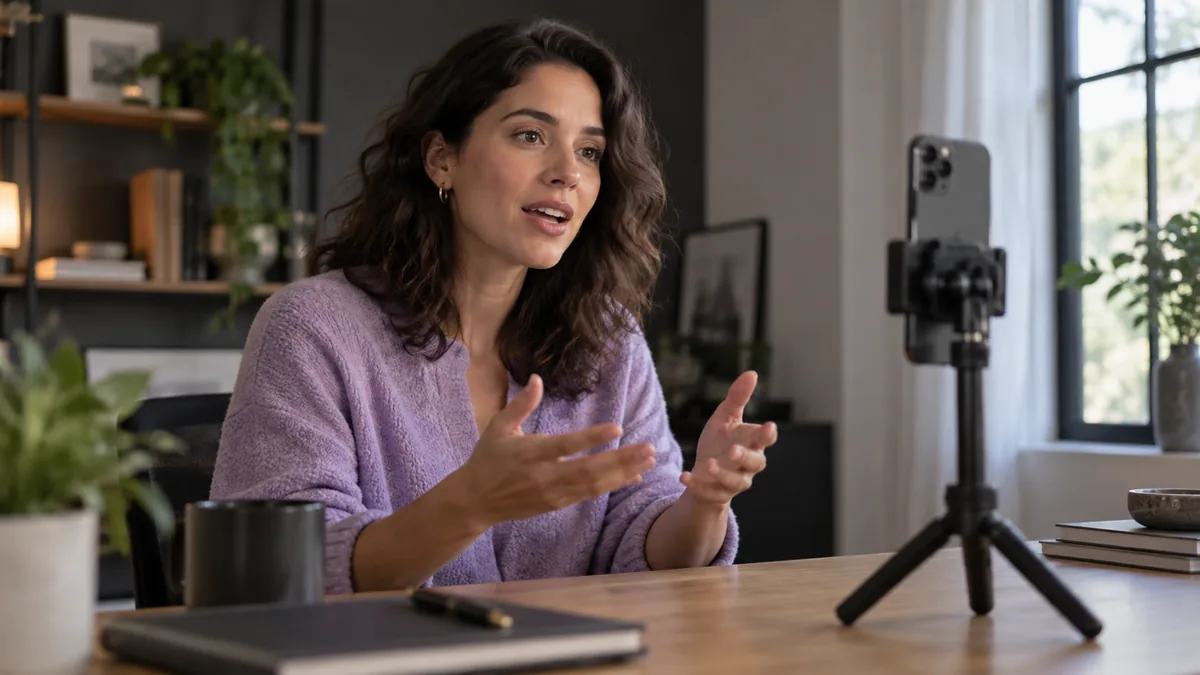
To record yourself reading a script on iPhone, put the words over the camera preview, rehearse at a comfortable pace, then record a short test before your full take. In Teleprompter Pal’s private beta, you can keep the script, recording and trim/crop workflow on the phone, then save a separate MP4.
The short answer
- Set your text position and pace before recording. Scrolling uses your chosen speed, not voice following.
- Restarting the text and stopping the camera are different actions. Check the recording indicator.
- Trim and crop a copy, then play the exported MP4 in its destination. Your original stays in the library.
Teleprompter Pal is currently in private beta for iPhone with iOS 18 or later. If you want to try this workflow, join the early-access list. If you need to record at your computer today, use the browser camera workflow. Both products are made by the Teleprompter Pal team.
Prepare a script you can say aloud
Create or open a script in Pal’s Scripts library. Give the take a recognizable name, such as “Introduction, first pass,” so you can find it after recording. Read the wording aloud once before adjusting the reader. A sentence that is difficult to say will remain difficult at a slower scroll speed.
Put a paragraph break where you want a breath or a change of thought. Spell out a number if its written form makes you hesitate. Keep filming directions separate from spoken words so you do not accidentally read them.
Start with this short practice passage:
This is a test of my recording setup. I want the words to be easy to follow without looking far away from the camera. I will leave a short pause here. Then I will finish the thought and check the saved video.
Use the speech-time calculator for a first estimate of a longer script. Your timed reading matters more than its estimate, particularly when you add pauses or show something on camera.
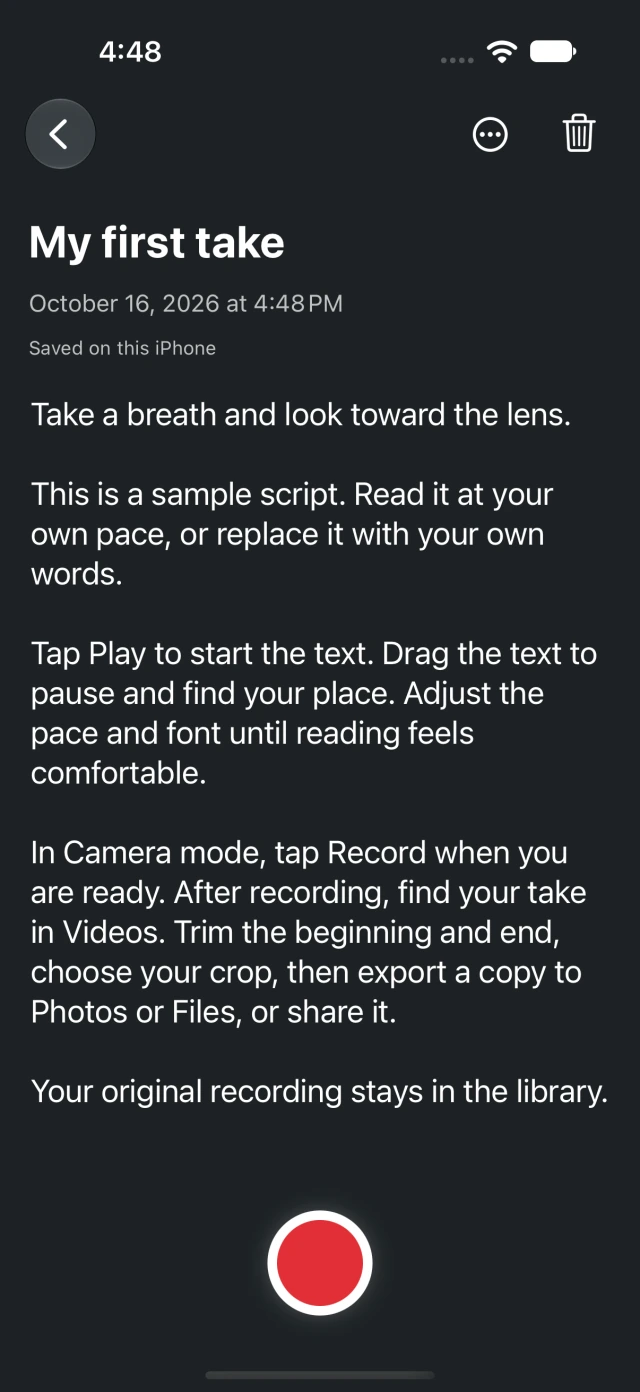
Place the words close to the front camera
Open the camera workflow from your script and allow the camera and microphone permissions needed for your take. Put the phone on a stable support at approximately eye level. Check the preview before recording: your face should fit the frame without leaning toward the screen.
Adjust the prompt’s position, size, background and speed until you can read from your normal filming distance. Keep the active lines close to the lens, rather than filling the screen with tiny words. Narrower lines may reduce sideways eye movement, but the right setting depends on your distance and eyesight.
Rehearse with the text controls first. Pal’s current beta uses a speed you set; it does not listen to your voice to follow your place. If you pause to explain something, pause the text or leave a recovery point in the script. Decide portrait or landscape framing before the take, then check it again when planning a crop.
Record a test and check picture and sound
Start with about 15 seconds of speech, including a natural pause. Use the record control and watch for the recording state and timer. A camera preview alone does not mean a video is being saved. Stop the recording, open the saved take and listen as well as watch.
Check these details before recording the full script:
- Your first words and final sentence are present.
- Your voice is audible, with the microphone you intended to use.
- Looking at the prompt does not pull your eyes conspicuously away from the lens.
- Your head and hands fit the frame you plan to deliver.
Change one thing at a time if the test is uncomfortable. Moving the text can help more than increasing the speed. If you are still deciding between devices, compare a browser setup with an iPhone app.
Recover from a mistake without losing the take
When you stumble, leave a pause and return to the beginning of the thought. You can repeat that sentence within the same recording, then remove the unwanted lead-in later. For a completely fresh attempt, stop and save the take before recording again.
The text’s Play/Pause and Restart controls operate the prompt. Restarting the text does not end an active recording. In the current beta they are in the lower-left controls menu. Check the red recording timer and use the camera’s stop control when you want to finish the video.
After an interruption, check the saved recording and the app’s state before continuing. Do not assume that recording resumed. Keep any usable take until you have opened and checked its replacement.
Trim, crop and export a separate MP4
Find the saved take in the Videos library and open its editor. Set the beginning and end around the performance you want to keep. Play the edit before exporting: leave enough time for the first word and a natural finish.
Choose the crop for the destination. A square crop can remove material at the top and bottom of a portrait recording; check your face, gestures and any object you show. Pal’s trim and crop edits preserve the original recording, so you can return to it for another version.
Export an MP4, then choose Photos, Files or Share Copy. Open the saved copy in the destination and play it with sound. The editor preview is only part of the check; a successfully saved, playable file is the useful result. Sharing to a particular outside app still depends on that destination.
One internal physical-device check trimmed an 11.90-second original to a 7.90-second selection and exported a 1080 × 1080 MP4 with H.264 video and AAC audio. The copy opened in both Photos and Files. This is a specific worked result, not a promise that every source or crop has those dimensions.
What we have verified, and what to test yourself
Our sanitized recording and export test summary records internal checks on an iPhone 17 Pro running iOS 27.0, using development build 0.6.17 (37) on 19 October 2026. Physical camera probes produced 15-second and 60-second originals with audio, plus a finalized interrupted take. Trim, crop and save checks used the normal installed app interface.
The current controls were subsequently checked in the Simulator for build 0.6.18 (38). Those interface checks do not repeat the physical capture/export test. We have not established long-session reliability, all-iPhone compatibility or a public App Store release through these checks. The private test footage is not published.
Try a short recording on your own device before a time-sensitive shoot. Scripts and recordings stay on the iPhone in this workflow, with no account required. Keep a saved export of footage you need outside the app.
Request early access to Teleprompter Pal to try the iPhone beta. If you are evaluating several options, compare iPhone teleprompter apps by the recording and export tasks you need.