
Start a rehearsal
- Open your script, open the three-dot Script actions menu, and choose Rehearse.
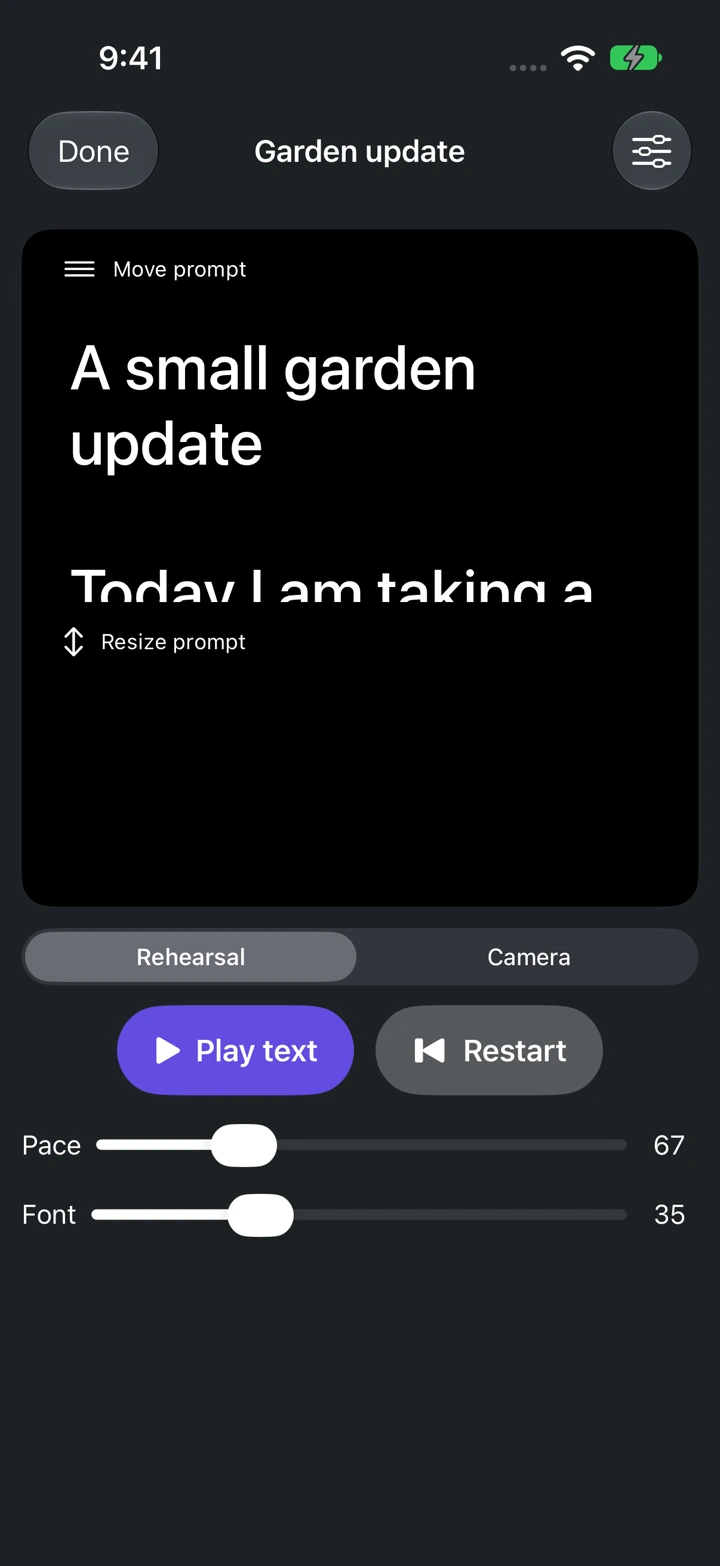
- Tap Play text to start scrolling. Tap Pause text or drag the text to stop and find your place.
- Use Restart when you want to begin from the top.
Make the text comfortable
Use the Pace and Font sliders below the rehearsal reader to adjust scrolling speed and text size. In Camera mode, Size, Background, and Speed adjust the reading panel.
Read a few sentences aloud and adjust the speed to match your delivery. Scrolling follows the speed you set; it does not follow your voice.
Resume from your place
The reader remembers your place for that script. Check the starting line when you return, especially after editing the text.