
Prepare an MP4
- Open your recording in Edit Video and check the trim and crop.
- Tap Export MP4, or Save Edit & Export MP4 if you have changed the edit. Pro is required for export.
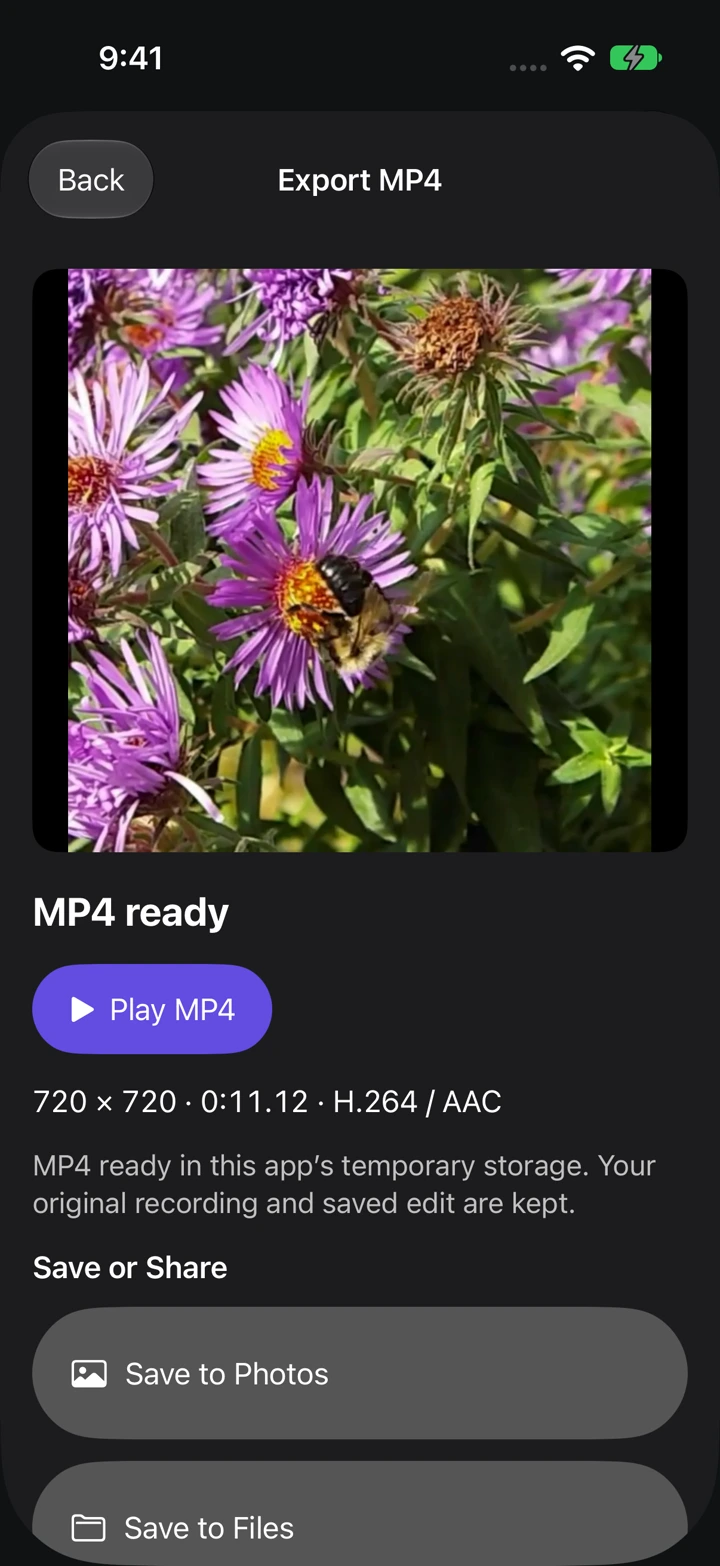
- Keep the app open while it prepares the file. When MP4 ready appears, use Play MP4 to check the result.
Save or share the file
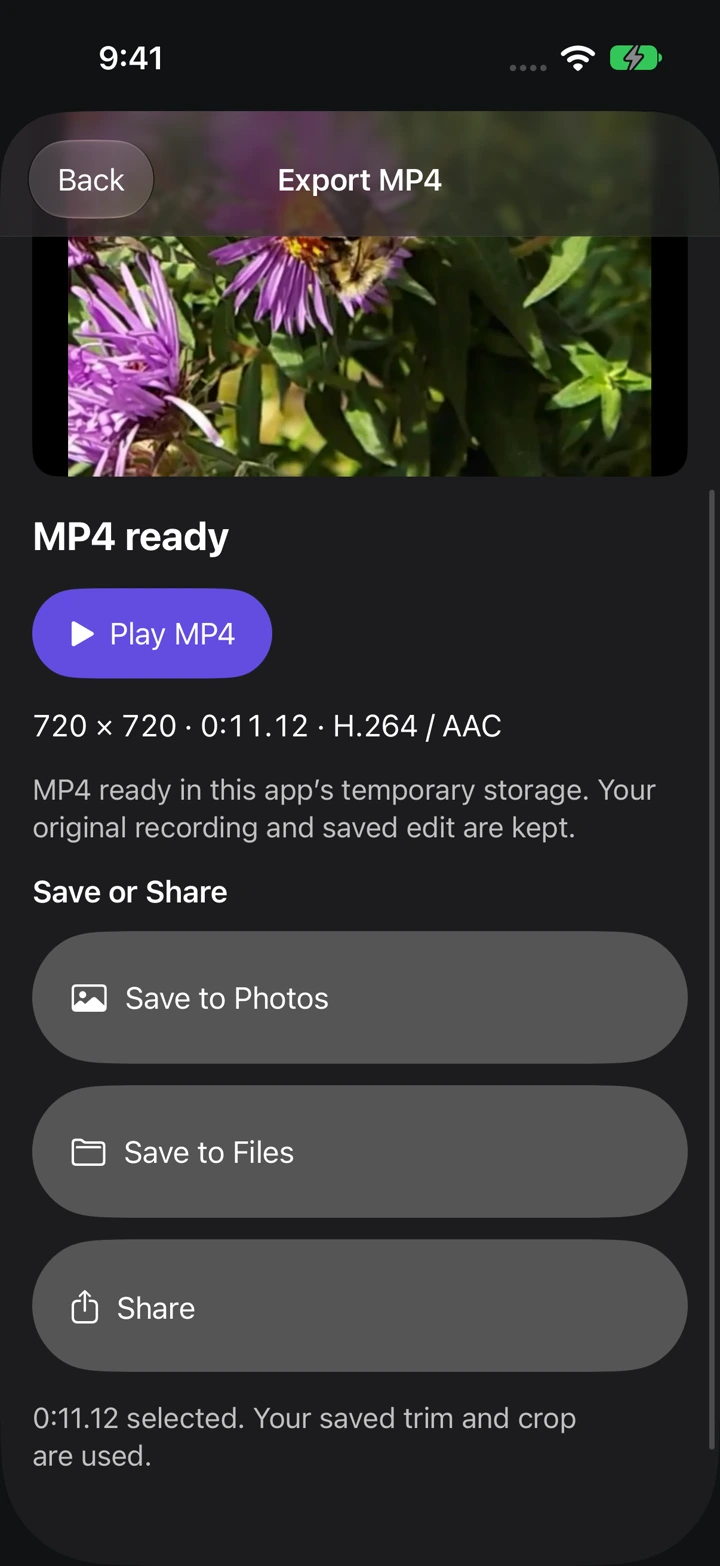
Save to Photos adds the video to your photo library and asks for permission if needed. Save to Files lets you choose a folder. Share opens the iPhone share sheet.
Scroll down if a destination is below the video preview. MP4 ready means the copy is in temporary storage; finish a save or share action to deliver it outside the app.
Confirm that your video was saved
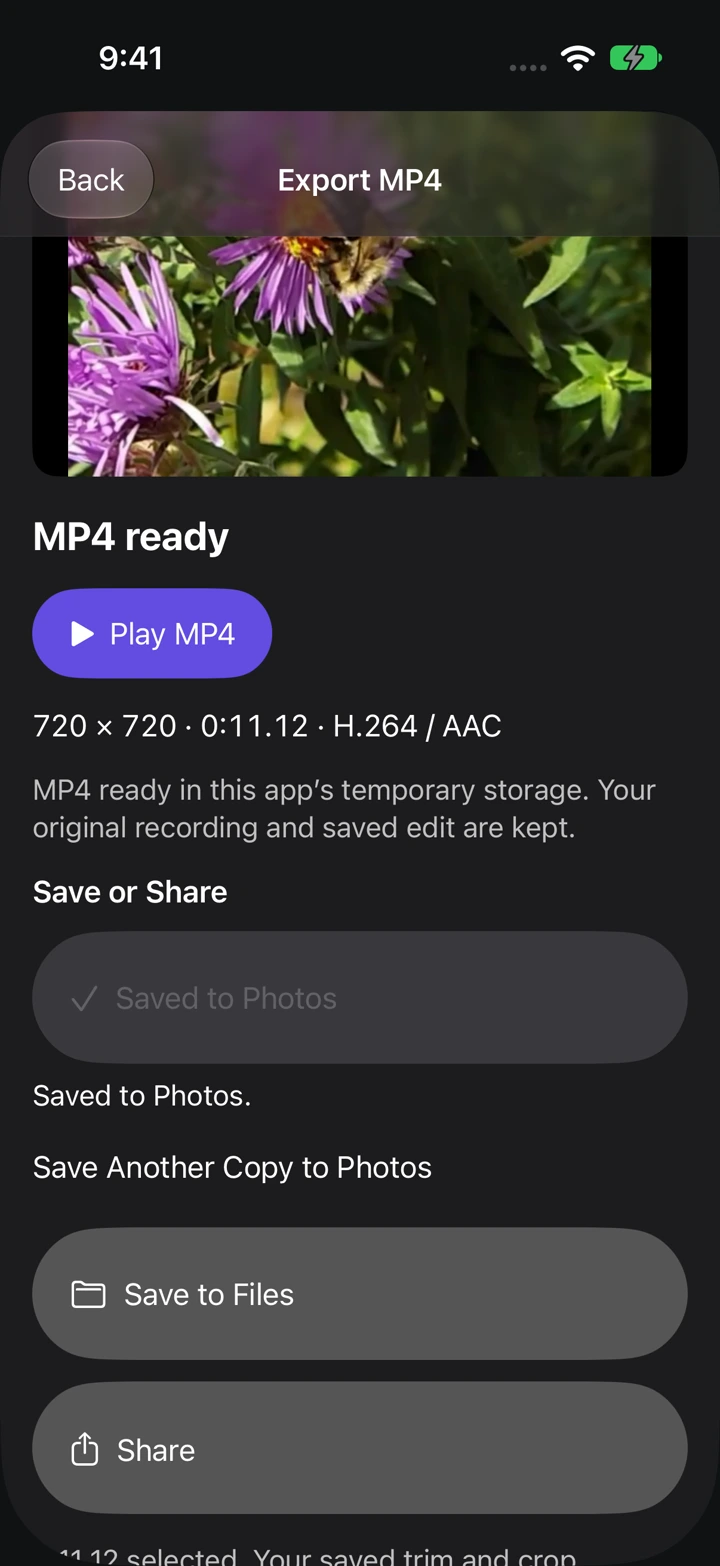
Wait for Saved to Photos or Saved to Files, then open that destination and play the video. The original recording remains in Teleprompter Pal.
If export is interrupted
Your original recording and saved edit are kept if export stops. Return to the export screen and choose Retry Export.
If a save or share result is uncertain, check Photos, Files, or the receiving app before trying again to avoid duplicate copies.