
Prepare the camera
- Open a script with some text and tap the red Record button. From the library, the Record button asks you to choose a script first.
- Allow camera and microphone access when prompted. Check the camera preview, choose the front or rear camera, and set your text size and pace.
- Choose portrait or landscape before starting. The recording orientation stays fixed for that take.
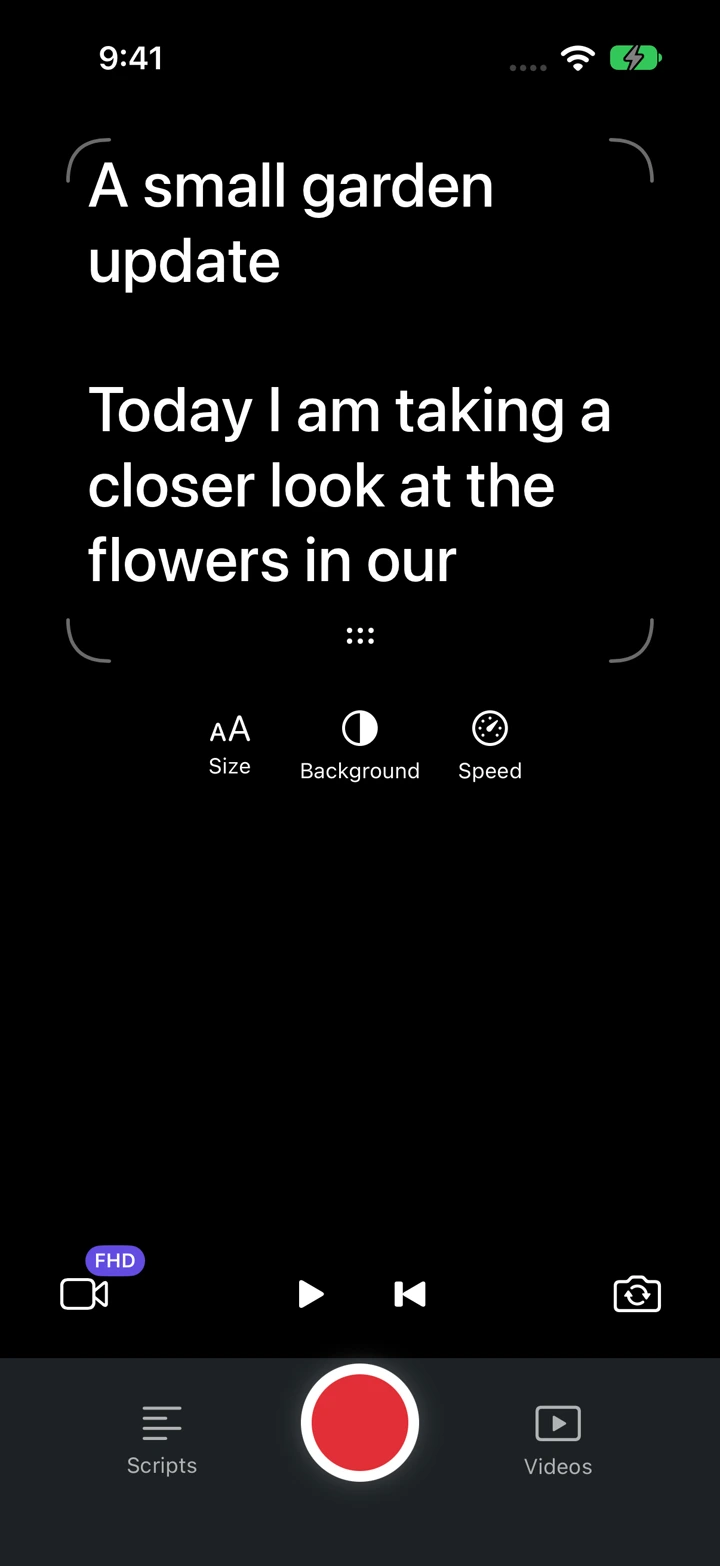
Start and stop your take
This demonstration runs the real app in an iPhone simulator. The camera preview is blank and the take is simulated; on your iPhone, the preview shows your camera image.
Tap Record inside the studio to start the countdown. Tap Stop when you finish, then allow the app to finish saving.
Keep the app visible during recording. Calls, interruptions, or low storage can end a take. There is no fixed recording time limit, but available storage matters.
Check the recording
Open Videos to find recordings grouped by script. Tap a thumbnail to play the original and check the picture and sound before editing or sharing.